
In part 1 we discussed the PowerPoint accessibility checks for “Colour and Contrast”, “Media and Illustrations” and “Tables”. You can find part 1 here. This part focuses on document structure.
Document structure
Unclear hyperlink text
If we paste a link into our presentation, it will get flagged under “Unclear hyperlink text”. This is because links should be inserted as hyperlinks, which means they should have a text about what they are that people can click on. If we forget to do this, it will get flagged and PowerPoint will ask us to enter specific descriptive text for the link. Be aware though that PowerPoint cannot check how descriptive the text is. Generally, it is recommended that hyperlink texts describe what the link is about. For example, avoid text like “Click here”, but use something like “Newsletter sign-up form” instead.
Why is this important?
The use of hyperlinks is important for screen reader software. This software detects a link and reads it out. Users can then choose to open the link, or not. If the text of the link is simply a web address, or a non-descript “Click here”, the user can get confused about what the link is for.
Missing slide title
Each slide in a PowerPoint presentation should have its own, unique title. If we forget to add a slide title, or designate a textbox within the slide as the title, this will get flagged in our accessibility check. If this happens, we can then either choose to enter a new title or choose a textbox in the slide to become designated as the title.
Why is this important?
Slide titles need to be designated by the programme as slide titles. This is because in the background, each slide title gets added to an invisible table of contents. Screen reader users can jump to a specific slide that they are interested in, or that is currently being talked about. This is why, even if you do not want to have a slide title visually presented, you should add an invisible slide title. More information on invisible slide titles can be found here.
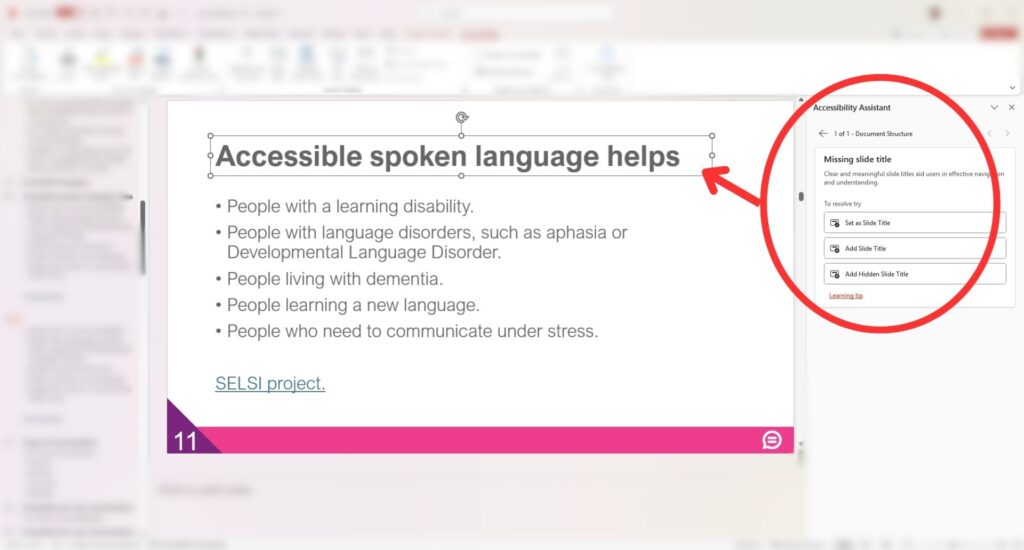
Duplicate slide title
If we use the same slide title twice, it will be highlighted under “Duplicate slide title”. To fix this, click on it and change the title of one of the slides.
Why is this important?
Since each slide title creates a table of contents for screen reader users, duplicate slide titles cause confusion.
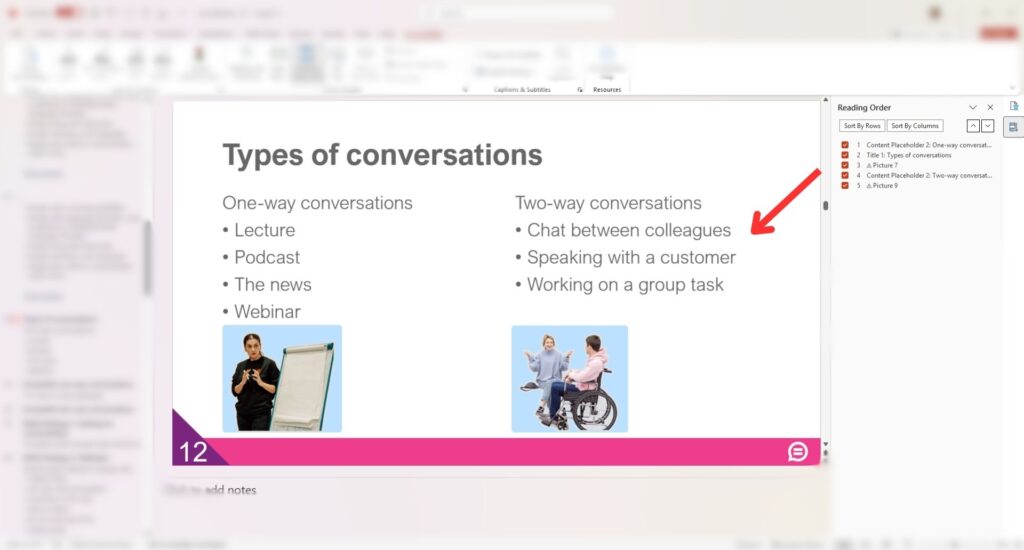
Check reading order
The automatic reading order of elements on our slide depends on when elements are added, not how they appear on the slide. Elements are things like text boxes, tables and images. If PowerPoint suspects that the order in which elements appear visually on the slide is vastly different from how they were added, it will flag this under “Check reading order”. If we click on it, we can re-order all our elements to ensure the order is correct.
Why is this important?
Screen readers will read out slide elements according to the reading order. If the order is different from how it appears visually on the slide, screen reader users will get completely different, if not wrong, information from the slide.
Conclusion
There are more aspects of the accessibility check in PowerPoint, but in Parts 1 and 2 we have focussed on some of the most important. Using the PowerPoint Accessibility Checker is a good start, but it cannot do all the work for you. How you label slide elements, use images and write descriptions, the language, words and sentences you use, and your layout, all highly influence the accessibility of your slides.
If you are interested in finding out more about accessibility and inclusive communication, contact the DES Training Team to discuss our services. Email us at training@disabilityequality.scot
Back to all news ©2026 Disability Equality Scotland